The Ultimate Guide: How to Easily Install Kodi on Firestick to Transform Your Living Room into a Powerful, Feature-Rich Home Entertainment Hub

If you want to take your streaming experience to the next level, learning how to install Kodi on Firestick is the best way to consolidate all your media into one intuitive, customizable interface. Kodi is a world-class, open-source media center that organizes your local files and online streams, turning your simple television stick into a professional-grade media powerhouse. While it is not available in the official Amazon Appstore, the process to get it running is surprisingly simple for anyone to follow. This guide will walk you through each step, ensuring you have a seamless, stable, and highly functional setup ready for use.
| Feature | Details |
| Primary Goal | Effortlessly install Kodi on Firestick |
| Main Requirement | Enable Developer Options/Unknown Sources |
| Tool Needed | “Downloader” app from Amazon store |
| Best Version | Kodi 21.x (Omega) stable release |
| Core Benefit | Unified media library and interface |
Understanding the Versatility of the Kodi Platform
The primary reason millions of users choose to install Kodi on Firestick is its sheer power as a media aggregator. Kodi is not a streaming service itself; rather, it is a highly capable software shell that organizes content. Whether you have photos, home videos, or music files stored on a network drive, Kodi displays them in a sleek, magazine-style layout. Because it is open-source, the customization options are practically infinite. By learning how to properly set up the software, you unlock the ability to control your entire digital media collection from one simple, remote-friendly dashboard that works beautifully on any television screen.
Enabling Unknown Sources for Third-Party Apps
Amazon’s Fire TV devices are designed to keep the ecosystem secure, which means you must adjust one security setting before you install Kodi on Firestick. Navigate to your Firestick Settings, select “My Fire TV,” and then “Developer Options.” If you do not see Developer Options, click “About” and select your device name seven times until the message “No need, you are already a developer” appears. Once enabled, toggle the “Apps from Unknown Sources” option to “ON.” This is a standard procedure that allows you to side-load apps that are not found in the official Amazon store, opening up your device’s potential.
Installing the Essential Downloader Tool
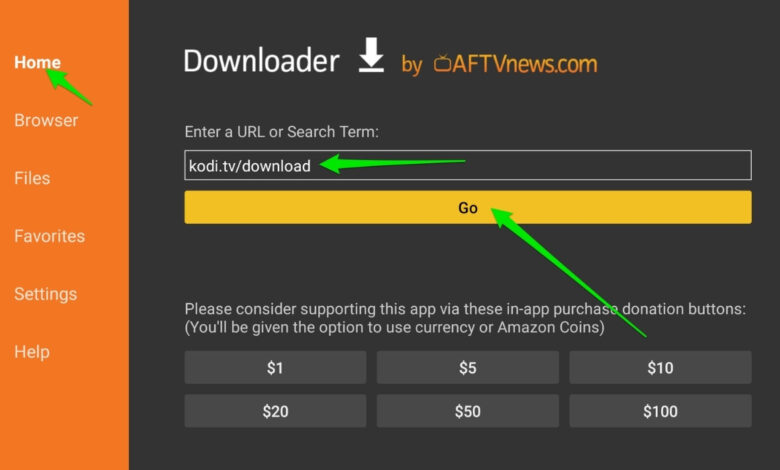
The easiest method to install Kodi on Firestick involves an app called “Downloader,” which is available for free in the Amazon store. Use the search icon on your home screen, type “Downloader,” and download the orange-icon app. Once installed, launch it and grant it permissions to access your files. This app acts as a browser that allows you to download files directly from the internet to your Fire TV. It is a vital, safe, and highly reliable tool that simplifies the entire side-loading process, making it much more accessible than trying to manually transfer files via USB or network protocols.
Navigating to the Official Kodi Download Page
Once your Downloader app is configured, you are ready to install Kodi on Firestick by accessing the official website. Inside the Downloader app, enter the URL kodi.tv/download in the browser field and press “Go.” This will take you directly to the official Kodi website. Ensure you are visiting the official domain to guarantee that you are getting the safest, malware-free version of the software. From the menu on the site, select the Android icon, as the Fire TV operating system is built on the Android framework, which ensures full compatibility with the latest stable version of the software.
Selecting the Correct Android Build Version
When you reach the download section, you will see a few options. To install Kodi on Firestick properly, you should choose the “ARMV7A (32-bit)” version. While some newer Fire TV devices are technically 64-bit, the 32-bit version is universally compatible, smaller, and runs more efficiently on the limited hardware resources of a streaming stick. Selecting the wrong version might cause the installation to fail or result in performance issues, so sticking to the 32-bit ARMV7A build ensures the most stable, smooth, and bug-free performance for your specific device architecture during your daily streaming sessions and media library navigation.
Initiating the Installation Process
After the APK file finishes downloading in your browser, a prompt will appear asking you to install the application. Click “Install” to install Kodi on Firestick permanently. Your device will now unpack the files and set up the interface. This process usually takes less than a minute. Once it completes, you will see a notification confirming the app is ready. Before you launch it, do not click “Open” just yet; instead, click “Done.” This allows you to go back and delete the installation file, which saves valuable storage space on your device, keeping your system performance high and clutter-free.
Cleaning Up Storage After Installation
After the successful attempt to install Kodi on Firestick, you will find that the APK file you just downloaded is still taking up space. It is good practice to delete it immediately. In the Downloader app, you will see a button labeled “Delete.” Click it to remove the installer file. Keeping your storage clean is vital for the Firestick, as these devices often have limited internal space. Deleting the file ensures that your new installation has plenty of room to cache metadata and images, which keeps the interface snappy and responsive every time you navigate through your media library.
Launching the Media Center for the First Time
Now that you have finished the setup, it is time to open the software and see how it works. To find it, hold down the “Home” button on your Fire TV remote, select “Apps,” and locate the app icon in your list. You can also move it to the front of your apps list for easier access. When you launch it, the software will ask for permission to access your device’s photos, media, and files. Grant these permissions so that you can install Kodi on Firestick and have it scan your local storage for existing media files you may want to play.
Adjusting the System Language and Interface
Upon launching for the first time, you might want to personalize your experience. Many users who install Kodi on Firestick find the default settings are perfect, but others prefer to change the language or the time zone settings immediately. Go to the “Settings” gear icon at the top left of the screen, select “Interface,” and then “Regional.” Here, you can adjust the language and keyboard layout to match your preference. This ensures that all text is easily readable and that your time and date settings are correct, which is important for any automated scheduling or metadata retrieval features you might enable later on.
Optimizing Video Settings for Firestick Hardware
When you install Kodi on Firestick, it is important to ensure the video settings are optimized for your television. In the “Settings” menu, head to “Player” and then “Videos.” Make sure “Adjust display refresh rate” is set to “On start/stop.” This simple setting helps prevent “judder” during playback, ensuring that movies and shows look smooth, regardless of the frame rate of the original source file. Taking these few minutes to configure the video output ensures that your media looks as crisp, vibrant, and cinematic as possible, providing a premium home theater experience on your living room television.
Adding Your Local Media Sources
The true power of this software comes from organizing your own files. If you install Kodi on Firestick to play your own movies or shows, go to “Files” in the main menu and select “Add Videos.” Browse to the folder where your media is stored. The software will then scan your files and attempt to download cover art, cast information, and plot summaries from the internet. This turns a boring list of file names into a gorgeous, professional-looking media library that automatically updates as you add new movies or shows to your external storage or network drives.
Understanding the Add-on Repository System
The “Add-ons” feature is what makes it possible to expand the functionality beyond just local files. When you install Kodi on Firestick, you gain access to an official repository of plugins that can change the look of the interface or add support for specific streaming services. To explore these, go to the “Add-ons” menu, select the package installer icon, and choose “Install from repository.” You will find a wide variety of official, safe plugins that allow you to customize your experience, add new features, and tailor the software to your specific needs, whether for music, weather, or other specialized media tasks.
Keeping the Software Updated Regularly
Technology moves fast, and staying updated is vital. When you install Kodi on Firestick, the software does not update automatically like apps in the official Amazon store. To update, you must occasionally check the official website, download the latest stable APK using the Downloader app, and run it. The new version will automatically install over the old one, keeping your data and settings intact. Regularly updating ensures that you get the latest security patches, performance improvements, and feature updates, which are essential for maintaining a stable and reliable media center experience on your television device.
Troubleshooting Common Installation Issues
If you encounter errors when you try to install Kodi on Firestick, don’t worry; they are usually simple to fix. If the app fails to launch, check your internet connection or try reinstalling the APK. If you have “insufficient storage,” delete some unused apps to make space. Always remember to enable “Unknown Sources” in the developer menu; this is the most common reason for failed installations. By being methodical and following these steps carefully, you can overcome almost any hurdle that arises, ensuring that your installation is successful and ready for your daily entertainment use without any persistent technical issues.
Protecting Your Privacy While Streaming
Privacy is a growing concern in the digital world. If you plan to install Kodi on Firestick, many power users choose to use a VPN (Virtual Private Network) to ensure their activity remains private. A VPN masks your internet traffic, preventing your ISP from monitoring your streaming habits. If you decide to use a VPN, many of them offer dedicated apps in the Amazon store that are very easy to set up. Simply launch the VPN app, connect to a server of your choice, and then open your media center. This is a simple, effective way to maintain anonymity while enjoying your library.
Customizing the Look with Skins
One of the most fun parts of this software is that you can change the entire aesthetic. When you install Kodi on Firestick, you are not stuck with the default “Estuary” theme. In the “Interface” settings, you can select “Skin” and download new ones. Many skins are designed specifically for remote-controlled devices like the Firestick, offering large icons and easy navigation. Whether you want a minimalist look or a complex, information-heavy dashboard, there is a skin available to match your style. It is an easy way to make your entertainment setup feel unique, modern, and highly personalized.
Boosting Performance on Older Firesticks
If you have an older or budget-model Firestick, you might find the performance feels a bit sluggish. When you install Kodi on Firestick on these older devices, keep your library scan light and avoid using highly complex, animated skins. Instead, stick to a fast, clean skin. Additionally, avoid running too many background tasks while the app is active. By reducing the visual load, you can significantly improve the responsiveness of the interface, ensuring that your media library remains smooth, fast, and enjoyable to use, even if your hardware is a few years old and lacks top-tier processing power.
Backing Up Your Configuration Settings
After you spend time customizing your setup, you don’t want to lose it. A great way to protect your work after you install Kodi on Firestick is to use the “Backup” add-on found in the official repository. This plugin allows you to save your entire configuration—including your library, skins, and add-on settings—to an external drive or a network location. If you ever need to reset your device, you can simply reinstall the app, point it to your backup file, and restore everything in minutes. It is a smart way to ensure your efforts are never wasted.
Leveraging Network Attached Storage
To maximize the value of your setup, connect your media center to a NAS (Network Attached Storage) drive. When you install Kodi on Firestick, you can add your NAS as a media source via UPnP or SMB protocols. This allows you to store your entire collection of movies, music, and photos in one central location in your home, and then access it from any room. It is the ultimate way to build a sophisticated home entertainment system that is robust, scalable, and easy to manage, ensuring you have total control over your digital life from any TV screen.
Final Summary of Your Media Experience
Learning to install Kodi on Firestick is a rewarding project that transforms your streaming device into a professional-grade media center. By taking the time to configure the software, optimize your settings, and organize your files, you gain total control over how you consume your digital media. Whether you are building a vast library of films or just want a cleaner way to browse your photos, the flexibility of this open-source platform is unmatched. Enjoy your new entertainment setup, and don’t hesitate to experiment with new themes, skins, and add-ons to keep your home cinema experience fresh and exciting for years to come.
- Is it safe to install this app on my device?
- Yes, as long as you download it from the official website (kodi.tv), it is a safe and legitimate open-source media player.
- Will this void my Firestick warranty?
- No, installing third-party apps like this does not void your Amazon device warranty, as it is a standard feature supported by the Android-based OS.
- Can I use my Firestick remote with this?
- Yes, the software is designed to be fully navigable with your standard Fire TV remote, making it very easy to use.
- Do I need a VPN to use it?
- While not strictly necessary, many users employ a VPN to ensure their privacy and bypass any potential ISP throttling while streaming their own content.
- Why is the software not in the official Amazon store?
- The software is a media center, not a streaming service, and it is available directly from the developer’s website to ensure users always get the latest version.